[Moved from my other blog page]
I
know I'm getting carried away with this list comprehension topic, but
I'm finding it a lot of fun to see what else I can do with list
comprehension. It also matches my other favorite topic (for another
day) of slicking and indexing. You will see some of it here. What I'm
doing here is exploring more ways of doing list comprehension. I''m sure
most of you know how to work with dictionaries.
Create a dictionary:
>>>
D = {'a': 'aardvark', 'b': 'bear', 'c': 'cat', 'd': 'dog', 'e':
'elephant', 'f': 'fox', 'g': 'giraffe', 'h': 'hippo', 'i': 'insect'}
List comprehensions on a dictionary are a little more complicated than a list, but it's fairly easy.
>>> [x for x in D]
['a', 'b', 'c', 'd', 'e', 'f', 'g', 'h', 'i']
>>> [x for x in D.values()]
['aardvark', 'bear', 'cat', 'dog', 'elephant', 'fox', 'giraffe', 'hippo', 'insect']
Edited later:
>>> [x for x in D.items()]
[('a', 'apple'), ('b', 'balloon'), ('c', 'cat'), ('d', 'dog'), ('e', 'elephant'), ('f', ['fox'])]
>>> [x for x in D.items() if x[1] == 'elephant']
[('e', 'elephant')] # In this case, it sliced by element. Use x[0] to scan the keys.
You can use either .items() or .iteritems() to get key, value pairs,
Back to original post:
Say I want to get the last letter of each item in my dictionary values:
>>> [x[-1:] for x in D.values()]
['k', 'r', 't', 'g', 't', 'x', 'e', 'o', 't']
How about filtering:
# Get the elements where the last letter matches 't'.
>>> [x for x in D.values() if x[-1:] == 't']
['cat', 'elephant', 'insect']
As you see, slicing comes in handy with coding list comprehensions.
An earlier post, I eexplored how the dir() function can really be useful. Here's a little expansion on that topic:
>>> import os
>>> dir(os)
>>> len(dir(os))
110
I
realized you really don't need a .startswith() or .endswith() call in a
list comprehension to find matching elements. Just slice away!
Filter by first letter:
>>> [x for x in dir(os) if x[0] == 'e']
['environ', 'errno', 'error', 'extsep']
Outside of a list comprehensiuon, you would have to do this to get the first letter of an element.
>>> dir(os)[41]
'environ'
>>> dir(os)[41][0]
'e'
In
the list comprehension, I didn't have to. Why? Because x already
indexes the list, so I'm slicing each element to return any string
beginning with 'e'.
If you need to know the index numbers to process later, you could:
>>> [dir(os).index(x) for x in dir(os) if x[0] == 'e']
[41, 42, 43, 44]
>>> [(dir(os).index(x),x) for x in dir(os) if x[0] == 'e']
[(41, 'environ'), (42, 'errno'), (43, 'error'), (44, 'extsep')]
As
I've mentioned before, thinking a list comprehension through is simply a
matter of putting the result you want first, then building the list
comprehension to reach your result, as you can see in the example above.
Now you have index intergers for all the elements beginning with 'e'
from the list.
It's
not necessary to use the keyword print inside the interactive session,
but if you put a list comprehension in a script and need to show your
result, put print before the list comprehension (e.g. print [x for ...])
I
know there are programmers out there who are smareter and more
experienced than me. As you see, I'm a quick learner and I relish the
opportunity to continue learning.
I'm
not shoinw off at all. Instead, I view this as a way to prod you and
your ideas, so you can achieve your own success and sense of
satisfaction at having done it. I am limited in my hearing and eyesight,
but it doesn't stop me from doing what I can and stay busy in what I
really enjoy.
Until later, happy coding!
Tuesday, August 21, 2018

Empty spaces
Good morning,
This is for the newbies:
When you're developing code and you need to test if a String object is truly empty, be careful. Here's an example:
class IsStringTrulyEmpty {
public static void main(String[] args) {
//Is string truly empty?
String s = " ";
String t = "";
//Test
System.out.println("Is s truly empty? " + s.isEmpty());
System.out.println("Is t truly empty? " + t.isEmpty());
}
}
Here is the output when run:
Is s truly empty? false
Is t truly empty? t rue
Notice that s returned false. Why? There is a space between the quotation marks. This may have an impact, because if you're checking if a string is empty, it will never be true if there's a space.
It truly is all in the details.
Happy coding!
This is for the newbies:
When you're developing code and you need to test if a String object is truly empty, be careful. Here's an example:
class IsStringTrulyEmpty {
public static void main(String[] args) {
//Is string truly empty?
String s = " ";
String t = "";
//Test
System.out.println("Is s truly empty? " + s.isEmpty());
System.out.println("Is t truly empty? " + t.isEmpty());
}
}
Here is the output when run:
Is s truly empty? false
Is t truly empty? t rue
Notice that s returned false. Why? There is a space between the quotation marks. This may have an impact, because if you're checking if a string is empty, it will never be true if there's a space.
It truly is all in the details.
Happy coding!
Friday, August 10, 2018
Jython and working with java's generic types.
Hello all!
Let's talk today about Java's Generics. I will demonstrate how you can work with these. As you work with other programmers' libraries, you may come across a library that is built around Java's generic types.
Using Jython to work with these types takes a little work. Trying to access them directly does not work. Why? It's the basic structure of Jytjpm tjat the system is dynamically typed, while Java is quite strict in that area. For example, if you, in the Jython interpreter, type:
i = 100
Then the type is 'int'. If you use the same variable name:
i = 100.5
The type is now a 'float' (or Double per Java). You do not need to declare the type you are using, as Java demands you do.
So, how to utilize Java's Generics? Simply by explicily casting your type prior to passing it to Java.
Allow me to demonstrate. I have created a simple class that actually takes TWO types. Both types can be the same, but they can be different also.
=======TwoTypes.java====================
public class TwoTypes<T, V> {
T ob1;
V ob2;
// Constructor
public TwoTypes(T o1, V o2) {
ob1 = o1;
ob2 = o2;
}
//Methods
public void showTypes() {
System.out.println("Value of type T is: " + ob1.getClass().getName());
System.out.println("Value of type V is: " + ob2.getClass().getName());
}
public T getob1() { return ob1; }
public V getob2() { return ob2; }
}
============end of java file ===============
The showTypes method will return the types as Java sees them. The getob1 and getob2 methods are used to return the data contained in the object that was created. If you think about it, one variable name can be used to contain two diffenent types!
After compiling the .java into a .class file, go to the directory where the .class file is stored and start your Jython interpreter. The following is from my own terminal, showing the demonstration of using the TwoTypes class.
==================
>>> import TwoTypes
>>> iOb = int(100)
>>> fOb = float(100.2)
>>> ttOb = TwoTypes(iOb, fOb)
>>> ttOb.showTypes()
Value of type T is: java.lang.Integer
Value of type V is: java.lang.Double
>>> # To see what's contained in the object.
>>> ttOb.getob1()
100
>>> ttOb.getob2()
100.2
>>> # You can even do operations with the objects!
>>>
>>>
>>> print "Adding the objects:", (ttOb.getob1() + ttOb.getob2())
Adding the objects: 200.2
===============
Very cool, indeed.
But really, the whole point of Java's Generic types is to ensure type safety, which Jython doesn't care about due to its dynamic nature. You can assign one TwoTypes object to another and Jython will do it happily. But, you will get strange and unexpected bahavior (and exceptions) when attempting to pass an incompatible object to java. This demonstrates what you can do to appease Java's requirements and get Jython and Java working smoothly.
As always, if you have questions or comments, don't be shy.
Happy coding!
Let's talk today about Java's Generics. I will demonstrate how you can work with these. As you work with other programmers' libraries, you may come across a library that is built around Java's generic types.
Using Jython to work with these types takes a little work. Trying to access them directly does not work. Why? It's the basic structure of Jytjpm tjat the system is dynamically typed, while Java is quite strict in that area. For example, if you, in the Jython interpreter, type:
i = 100
Then the type is 'int'. If you use the same variable name:
i = 100.5
The type is now a 'float' (or Double per Java). You do not need to declare the type you are using, as Java demands you do.
So, how to utilize Java's Generics? Simply by explicily casting your type prior to passing it to Java.
Allow me to demonstrate. I have created a simple class that actually takes TWO types. Both types can be the same, but they can be different also.
=======TwoTypes.java====================
public class TwoTypes<T, V> {
T ob1;
V ob2;
// Constructor
public TwoTypes(T o1, V o2) {
ob1 = o1;
ob2 = o2;
}
//Methods
public void showTypes() {
System.out.println("Value of type T is: " + ob1.getClass().getName());
System.out.println("Value of type V is: " + ob2.getClass().getName());
}
public T getob1() { return ob1; }
public V getob2() { return ob2; }
}
============end of java file ===============
The showTypes method will return the types as Java sees them. The getob1 and getob2 methods are used to return the data contained in the object that was created. If you think about it, one variable name can be used to contain two diffenent types!
After compiling the .java into a .class file, go to the directory where the .class file is stored and start your Jython interpreter. The following is from my own terminal, showing the demonstration of using the TwoTypes class.
==================
>>> import TwoTypes
>>> iOb = int(100)
>>> fOb = float(100.2)
>>> ttOb = TwoTypes(iOb, fOb)
>>> ttOb.showTypes()
Value of type T is: java.lang.Integer
Value of type V is: java.lang.Double
>>> # To see what's contained in the object.
>>> ttOb.getob1()
100
>>> ttOb.getob2()
100.2
>>> # You can even do operations with the objects!
>>>
>>>
>>> print "Adding the objects:", (ttOb.getob1() + ttOb.getob2())
Adding the objects: 200.2
===============
Very cool, indeed.
But really, the whole point of Java's Generic types is to ensure type safety, which Jython doesn't care about due to its dynamic nature. You can assign one TwoTypes object to another and Jython will do it happily. But, you will get strange and unexpected bahavior (and exceptions) when attempting to pass an incompatible object to java. This demonstrates what you can do to appease Java's requirements and get Jython and Java working smoothly.
As always, if you have questions or comments, don't be shy.
Happy coding!
Monday, August 6, 2018
Jython and the Java main()
hello all,
A quick post for today:
Have you exprienced frustration at attempting to run a Java main() method from Jython?
The reason is simple: Jython follows mos of the rules of Java, but not all. When you call Java's main() method using Java, you don't need to pass in anything.
However, when doing this from Jython, it complains. Even if you have arguments to pass it complains. Why? Because Java expects a String[] array. Java things you're passing an empty string, which from Java is fine, If you have arguments, you need to put the arguments into a list, and pass the list and Java will accept it.
Here is a simple Java code demonstrating printing from the console via Java. The example if from the book Java: The Complete Reference, 10th Edition, by Herbert Schildt:
=====================BRRead.java=========
import java.io.*;
public class BRRead {
public static void main(String[] args) {
char c;
BufferedReader br =
new BufferedReader(new InputStreamReader(System.in));
System.out.println("Enter characters. 'q' to quit.");
try {
do {
c = (char) br.read();
System.out.print(c);
} while (c != 'q');
} catch (IOException e) {
System.out.println("Exception");
}
}
}
==========End of file==========
Go to the directory where the .class file is saved, and fire up your Jython
interpreter.
Type the follwoing:
br = BRRead()
This will create an object that references the class. Now, create an array:
foo = []
It's acceptable to pass an empty list. It makes Java happy. If your main() requires arguments, then create the list as above, with your arguments as strings. To ensure you can see main from Jython, do dir(br).
If you do, you're ready to run the main() method.
br.main(foo)
You will see the two lines, with the press 'q' to stop. Type away. When you're done, type q by itself to go back to the interpreter prompt.
It may appear to be a flaw in Jython, but you have this work around to see if your code works as it should from Jython.
If you have any questions, please ask.
Happy coding!
A quick post for today:
Have you exprienced frustration at attempting to run a Java main() method from Jython?
The reason is simple: Jython follows mos of the rules of Java, but not all. When you call Java's main() method using Java, you don't need to pass in anything.
However, when doing this from Jython, it complains. Even if you have arguments to pass it complains. Why? Because Java expects a String[] array. Java things you're passing an empty string, which from Java is fine, If you have arguments, you need to put the arguments into a list, and pass the list and Java will accept it.
Here is a simple Java code demonstrating printing from the console via Java. The example if from the book Java: The Complete Reference, 10th Edition, by Herbert Schildt:
=====================BRRead.java=========
import java.io.*;
public class BRRead {
public static void main(String[] args) {
char c;
BufferedReader br =
new BufferedReader(new InputStreamReader(System.in));
System.out.println("Enter characters. 'q' to quit.");
try {
do {
c = (char) br.read();
System.out.print(c);
} while (c != 'q');
} catch (IOException e) {
System.out.println("Exception");
}
}
}
==========End of file==========
Go to the directory where the .class file is saved, and fire up your Jython
interpreter.
Type the follwoing:
br = BRRead()
This will create an object that references the class. Now, create an array:
foo = []
It's acceptable to pass an empty list. It makes Java happy. If your main() requires arguments, then create the list as above, with your arguments as strings. To ensure you can see main from Jython, do dir(br).
If you do, you're ready to run the main() method.
br.main(foo)
You will see the two lines, with the press 'q' to stop. Type away. When you're done, type q by itself to go back to the interpreter prompt.
It may appear to be a flaw in Jython, but you have this work around to see if your code works as it should from Jython.
If you have any questions, please ask.
Happy coding!
Monday, July 30, 2018
It's All in the Packaging.
Hello all.
Recently, I posted that if you want to build a Jython project with JDK code, it is very simple to do. However, if you want to DEVELOP your OWN Java classes, it takes a little more work. If you use an IDE to develop your code, understanding how your IDE packages your .class files is a must. Because Jython DEPENDS on knowing where your .class files are.
Understanding Java package rules will help in this are. I have found that the easiest way is to develop your Java project FIRST, then create a separate Jython project. You need to point to the directory where your .class files live. As an alternative, you could take your Java code, package it in a .JAR file, includ it in your JYTHONPATH environment variable and you're good to go.
Creating a .JAR file is simple. A short tutorial follows:
I use IntelliJ IDEA for my coding in both Java and Jython. In my project settings, under project, I defined a global /out folder for my compiled .class files. Doing this makes it easy to create .jar files depending on your project, as I will demonstrate soon. So, currently, my folder structure is
/home/patrick/out
When IntelliJ compiles the .class files, it adds a series of sub-folders, so that it looks like this\
/home/patrick/out/production/<projectname>
Under the project name is the hierarch you created with your Java project For me, it is
org.ppalczewski.<project>.<source1>.<so on>
So, in the end, my /out folder looks like this:
/home/patrick/out/production/<projectname>/org.ppalczewski.<project>/<source1>/<source2>/ etc
Wow, that's a lot of typing. But I only want to create a .jar that shows the hierarchy from org.ppaczewski dowm. I can do this two ways. First, I can navigate to my <projectname> folder (i.e. /home/patrick/out/production/<projectname>).
Then, I type this command to build my .JAR file:
jar cvf <project>.jar .
This will recurse from the <projectname> folder down and include all .class files. The switches are c(create), v(verbose), f(jar file name)
I have a root jarfiles folder that holds all of my jar files. I can navigate to this folder and type the following:
jar cvf <project>.jar -C /home/patrick/out/production/<projectname>/ .
This will do the same thing, and it retains your fully qualified package name structure (for me: org.ppalczewski.<project>.etc,etc).
It is very important to include the ending slash (or backslash in Windows). If you don't, you may get unexpected results. you can verify your package qualified name by
jar tf <jarfile>.jar
and this will list the .class files you have in your project.
So, after I have built my .jar file, and included this in my JYTHONPATH (you MUST include the actual name of your .jar file also), I can now fire up my Jython interpreter and test to see that it works.
In my code, I type this:
import org.ppalczewski.<project> as project
Now I have access to any classes I may have created.
To me, this makes it easier than having worry about whether Jython can see the .class files or not. 1. Build Java code. 2. Package in .jar file. 3. Import into Jython 4. Enjoy!
Then, for distribution, have the .jar file available and that's it.
Say you alread have a .jar file and you updated the code in your project? Do you need to delete the jar file and create a new one? No. Use the jar command's updatte feature, which will recreate the .jar file for you, adding any new files or updated code.
jar uvf <jarfile>.jar [-C <path>/<to>/<production>/] .
If I am able, I will create a blog with a simple project demonstrating this.
That's it for today. Happy coding!
Recently, I posted that if you want to build a Jython project with JDK code, it is very simple to do. However, if you want to DEVELOP your OWN Java classes, it takes a little more work. If you use an IDE to develop your code, understanding how your IDE packages your .class files is a must. Because Jython DEPENDS on knowing where your .class files are.
Understanding Java package rules will help in this are. I have found that the easiest way is to develop your Java project FIRST, then create a separate Jython project. You need to point to the directory where your .class files live. As an alternative, you could take your Java code, package it in a .JAR file, includ it in your JYTHONPATH environment variable and you're good to go.
Creating a .JAR file is simple. A short tutorial follows:
I use IntelliJ IDEA for my coding in both Java and Jython. In my project settings, under project, I defined a global /out folder for my compiled .class files. Doing this makes it easy to create .jar files depending on your project, as I will demonstrate soon. So, currently, my folder structure is
/home/patrick/out
When IntelliJ compiles the .class files, it adds a series of sub-folders, so that it looks like this\
/home/patrick/out/production/<projectname>
Under the project name is the hierarch you created with your Java project For me, it is
org.ppalczewski.<project>.<source1>.<so on>
So, in the end, my /out folder looks like this:
/home/patrick/out/production/<projectname>/org.ppalczewski.<project>/<source1>/<source2>/ etc
Wow, that's a lot of typing. But I only want to create a .jar that shows the hierarchy from org.ppaczewski dowm. I can do this two ways. First, I can navigate to my <projectname> folder (i.e. /home/patrick/out/production/<projectname>).
Then, I type this command to build my .JAR file:
jar cvf <project>.jar .
This will recurse from the <projectname> folder down and include all .class files. The switches are c(create), v(verbose), f(jar file name)
I have a root jarfiles folder that holds all of my jar files. I can navigate to this folder and type the following:
jar cvf <project>.jar -C /home/patrick/out/production/<projectname>/ .
This will do the same thing, and it retains your fully qualified package name structure (for me: org.ppalczewski.<project>.etc,etc).
It is very important to include the ending slash (or backslash in Windows). If you don't, you may get unexpected results. you can verify your package qualified name by
jar tf <jarfile>.jar
and this will list the .class files you have in your project.
So, after I have built my .jar file, and included this in my JYTHONPATH (you MUST include the actual name of your .jar file also), I can now fire up my Jython interpreter and test to see that it works.
In my code, I type this:
import org.ppalczewski.<project> as project
Now I have access to any classes I may have created.
To me, this makes it easier than having worry about whether Jython can see the .class files or not. 1. Build Java code. 2. Package in .jar file. 3. Import into Jython 4. Enjoy!
Then, for distribution, have the .jar file available and that's it.
Say you alread have a .jar file and you updated the code in your project? Do you need to delete the jar file and create a new one? No. Use the jar command's updatte feature, which will recreate the .jar file for you, adding any new files or updated code.
jar uvf <jarfile>.jar [-C <path>/<to>/<production>/] .
If I am able, I will create a blog with a simple project demonstrating this.
That's it for today. Happy coding!
Saturday, July 21, 2018
Hybrid Jython/Java projects in IntelliJ?
The post title is a pretty good question. The answer is: It's extremely difficult.
I will explain:
If you are pulling from extablished Java packages (JAR files), it's very easy.
However, if you are developing YOUR OWN Java classes, this is where the roadblocks start popping up. What I have found is that it's easier (in the long run) to develop you own classes in a Java project, and package them into a JAR file. Then create a separate Jython package that points to the JAR file. You can actually add it as a library in your Project settings,
The reason for this is that IntelliJ actually stores all your .class files in an output directory you must specify. So,m when you open up a .py file, it can see your code internally, but the actual .class files are somewhere else. And if you use a package structure, Jython cannot see the .class files, so it breaks the code.
For the really adventurous, you need to navigate to your output folder, call the java class with the FULLY qualified name, and it will work.
Much better to simply start a Jython project abnd point it to your output folderwhere your .class files are stored. Even easier to do the Java code, bundle it in a JAR and use Jython to call it with the qualified package name.
My ealier post on setting up IntelliJ was to work on Jython ITSELF, not for general Jython development.
I have also discovered that if you use IntelliJ's GUI builder to do your forms, Jython has a lot of trouble with that also. Why> IntelliJ stores the attributes (preferredSize, windowClosing, etc.) in its own .class files, contained in a com.intellij package. To pull up the form via Jython, you need to reference theis package. If you know your Jaa forms, and can do it via code, this way with alleviate the stress of Jython trying to find the particulars of your form to display.
If you separate your projects as I have stated above, you should be okay, as you can import the com.intellij packages into jython with hno problem and the form will be called correctly by the JVM your are using.
If you want to test your code via the command-line outside of IntelliJ, you can. Naviate to the folder ABOVE source folder and call it with the qulalified path name. Here's an example:
Let's say you have the following directory structure:
/home/patrick/myproj/mycode
I use a global out folder in IntelliJ, so it looks like this:
/home/patrick/out/production/myproj mycode
I create a test.java, and compile it. It puts the class files in the /mycode folder. Then I navigate to /home/patrick/out/production and call Test like so:
java mycode.Test
It will run. You need to match the package structure in your source file to properlyt call the class.
Lets sayyou have no package name. Navigate to the folder containing the .class file. Then you call Java with the -classpath option (listing your folder) and the class.
java -classpath /home/patrick/myproj/mycode Test
That's is for now. Fell free to comment, or provide correction. I still have a lot to learn. if you have successfully developed a JythonJava project using your own classes, let me know how and I will update this post.
Thank you and happy coding!
I will explain:
If you are pulling from extablished Java packages (JAR files), it's very easy.
However, if you are developing YOUR OWN Java classes, this is where the roadblocks start popping up. What I have found is that it's easier (in the long run) to develop you own classes in a Java project, and package them into a JAR file. Then create a separate Jython package that points to the JAR file. You can actually add it as a library in your Project settings,
The reason for this is that IntelliJ actually stores all your .class files in an output directory you must specify. So,m when you open up a .py file, it can see your code internally, but the actual .class files are somewhere else. And if you use a package structure, Jython cannot see the .class files, so it breaks the code.
For the really adventurous, you need to navigate to your output folder, call the java class with the FULLY qualified name, and it will work.
Much better to simply start a Jython project abnd point it to your output folderwhere your .class files are stored. Even easier to do the Java code, bundle it in a JAR and use Jython to call it with the qualified package name.
My ealier post on setting up IntelliJ was to work on Jython ITSELF, not for general Jython development.
I have also discovered that if you use IntelliJ's GUI builder to do your forms, Jython has a lot of trouble with that also. Why> IntelliJ stores the attributes (preferredSize, windowClosing, etc.) in its own .class files, contained in a com.intellij package. To pull up the form via Jython, you need to reference theis package. If you know your Jaa forms, and can do it via code, this way with alleviate the stress of Jython trying to find the particulars of your form to display.
If you separate your projects as I have stated above, you should be okay, as you can import the com.intellij packages into jython with hno problem and the form will be called correctly by the JVM your are using.
If you want to test your code via the command-line outside of IntelliJ, you can. Naviate to the folder ABOVE source folder and call it with the qulalified path name. Here's an example:
Let's say you have the following directory structure:
/home/patrick/myproj/mycode
I use a global out folder in IntelliJ, so it looks like this:
/home/patrick/out/production/myproj mycode
I create a test.java, and compile it. It puts the class files in the /mycode folder. Then I navigate to /home/patrick/out/production and call Test like so:
java mycode.Test
It will run. You need to match the package structure in your source file to properlyt call the class.
Lets sayyou have no package name. Navigate to the folder containing the .class file. Then you call Java with the -classpath option (listing your folder) and the class.
java -classpath /home/patrick/myproj/mycode Test
That's is for now. Fell free to comment, or provide correction. I still have a lot to learn. if you have successfully developed a JythonJava project using your own classes, let me know how and I will update this post.
Thank you and happy coding!
Sunday, April 1, 2018
Set up Jython Projects in IntelliJ IDEA
Hi all,
I personally use Jet Brain's IntelliJ IDEA (Community Edition 2018.1 at the time I write this) to develop my Jython projects. It can be used to help develop Jython itself. I will include screen-shots, and, hopefully you can set it up successfully. you may obtain the Community Editions from www.jetbrains.com. They are free.
I currently use Ubuntu 16.04 as my OS, but this should work in Windows as well.
Prerequisites:
You need to have Pycharm installed on your system as well, to take advantage of the Python plugin available for IntelliJ. install Pycharm first, and configure your Python interpreters. intelliJ will search for these when setting up the projects.
If you don't have Python installed, on Linux, you can download and install Python 2.X and 3.Z using the apt-get commands:
sudo apt-get install python (for Python 2) and
sudo apt-get install python3 (for Python 3.X)
Once you install Python and set up up Pycharm to use the Python interpreters, then you may install IntelliJ.
If you are cloning projects from GitHub or Mercurial, you need to have them installed on your system.
Set up IntelliJ to use Python/Jython:
When you've installed IntelliJ, the first window is where you select your project, At the bottom right, click Configure, then select Plugins. You will need to add the plugin for Pycharm.

Look for the Pycharm Community Edition plugin. If you don't have it, you need to download and install. Click "Install JetBrains plugin".

In the search dialog, type a partial name. Then select Pycharm Community Edition. On the right, there will be a green Install button. Click and follow the prompts. You may need to restart the IDE.

When you restart IntelliJ, you are now ready to set up a Jython project. The following screen-shots are for setting up the Jython development project.
Select "Check out project" from the main window, then select Mercurial. (This post will be updated later, when they move the project to GitHub). The link is https://hg.python.org/jython. The default directory will be <root>/IdeaProjects/<projectname>. If you want to store the source files somewhere else, put the path here. Then click "Clone". When it finishes, it will ask you if you want to create a project. Agree.

The project defaults can be accepted except in two places: The first one is shown below. At this screen, there are two options on setting up the projec: file based, or directory based. Choosing directory based makes it easier to compile and build your project. more explanation will follow later on, when i discuss the building your project.

The second is the modules screen. You only need one, your main folder. In the screenshot below, my folder is jydev, and that's the only module I need. unselect all the other ones. It doesn't remove the directories. Again this makes compiling your proect a lot easier.

Once you've finished setting up your project, it will open and be ready. Now, whe will go through the project structure and tweak the settings.
From the File menu, select "Project Structure".
Under the Project menu item, select the Java JDK you will work with. While you can use any JDK, for Jython, it is strongly suggested to use JDK8 or below, pending integration with JDK9. For me, I picked JDK1.8. If there are no JDKs set up yet, then click "New", then find the JDK directory. Then click OK to return to the Project setting.

Next is the "Modules" setting. When it set up your project, IntelliJ automatically found your Python sources (as shown by the arrows). Click Python, then select your Jython interpreter. If there is no Jython interpreter set up, click the ellipses to the right of the drop-down. The SDK window will appear. Click the "plus" to add an SDK and find your Jython installation path. it will add it as a SDK. Once that's done, click OK to return to the Modules menu. For all Python code, select Jython as the interpreter.
NOTE: If you are working on Jython itself, you can choose the development Jython as your interpreter. Just add it at the SDK screen, change the name label. Use the release Jython for your other projects.

Under SDK, you can leave it set to the JDK you selected in the project menu.
 Under Global Libraries, check to make sure they it shows Jython and Python libraries. You may add other libraries you want to use with your project, such as your own libraries.

The above steps are for setting up general Jython projects you want to develop The following screen-shots are specifically for Jython development itself.
note: If you would like to use the "Build project" from the menu, there are some steps to ensure a successful build. You will need to run Ant at least once, to generate the build folder. Follow the Ant setup section.
You may use IntelliJ's "Build project" option (from the Build menu. Or you can use Jython's own build.xml file and Ant to build your project. I have my IDE set to show the Toolbar, and also Tool Buttons (from the View menu). Tool Buttons will give you the buttons on the left, right and bottom of the window. on the right side, are the ant and Maven buttons. Click "Ant Build" to bring up the dialog. As you see, it doesn't show anything.
 Click the "plus" to add. Search for the build.xml file that is in the your project directory. Click OK and it will add it.

Now, it will show a list of Ant build options. if you click filter (the green icon to the right of "Run"), it will only show the Ant build selections contained in the build.xml file. We will use "developer-build". Right-click "deverloper-build" and select Properties.
 Leave the settings the way they are. under the Execution tab, you can verify that it's set to the project's JDK. Click OK when finished. Then double-click "developer-build" and let it run. It will compile all of the Java source files. If it gives warning messages, it's all right. As long as there's no fatal errors, Jython will build successfully.

Now that you've built Jython, you can now run it from within the IDE. You must choose the Python interpreter, as it runs under Python. In your /dist/bin folder (in the projecxt file tree), find the jython.py file. The first time, it will ask you to configure it.
Windows users: You should run the jython.exe file, instead of the jython.py file
This window will open. you can put any parameters you like (such as any JVM options, or switches). For a list of options, at the terminal, run Jython with the -h for help. In the environment section, select "Use specified interpreter" and select Python 2.7. Then check the box for "Emulate terminal in output console" (so that you will see the interactive prompts, >>> and ...). When you're finished, click OK. then select "Run" from the "Run" menu item.

There, you're all done. Note: Any Python files containing inline Java code, you should select Jython 2.7 as the interpreter (if it hasn't already). Only the jython.py file needs to run under Python.
The debugger will use the same interpreter as the Run configuration, so for jython.py it will use Python. All others will use the Jython debugger or the Java debugger (if it is a .java source file).
Building the Project
If you ran Ant and it returned an error, don't despair. The next section will help in setting up the source code and libraries to build and then you can run Ant again successfully.
You need to make sure that *all* of your sourcesfolders are chosen. IntelliJ is sort of strange in this regard. open your Porject Structure, go to your Modules. you will see all the subfolders under your jython folder. After you ran Ant, it created a /build folder. Navigate to the "gensrc" folder, expand and select all folders . Once they are highlighted, click Source. The folders will turn blue. Do the same for the src and all sub-folders.


Next, you need some external libraries. I had to add an Ant library, an informix library and an ojdb library. Click _ then select "Java", navigate to the folder containing the .jar file. Select the .jar file, then click OK. Click OK again to attach it to your jython module.
Once you coomplete these stepts, click OK and then run "Build porject" from the Build menu.

I hope this tutorial is clear and easy to follow. If you continue to have trouble and need more help, please contact me at psykiatris@gmail.com and I will be very glad to help you.
Happy coding!
I personally use Jet Brain's IntelliJ IDEA (Community Edition 2018.1 at the time I write this) to develop my Jython projects. It can be used to help develop Jython itself. I will include screen-shots, and, hopefully you can set it up successfully. you may obtain the Community Editions from www.jetbrains.com. They are free.
I currently use Ubuntu 16.04 as my OS, but this should work in Windows as well.
Prerequisites:
You need to have Pycharm installed on your system as well, to take advantage of the Python plugin available for IntelliJ. install Pycharm first, and configure your Python interpreters. intelliJ will search for these when setting up the projects.
If you don't have Python installed, on Linux, you can download and install Python 2.X and 3.Z using the apt-get commands:
sudo apt-get install python (for Python 2) and
sudo apt-get install python3 (for Python 3.X)
Once you install Python and set up up Pycharm to use the Python interpreters, then you may install IntelliJ.
If you are cloning projects from GitHub or Mercurial, you need to have them installed on your system.
Set up IntelliJ to use Python/Jython:
When you've installed IntelliJ, the first window is where you select your project, At the bottom right, click Configure, then select Plugins. You will need to add the plugin for Pycharm.

Look for the Pycharm Community Edition plugin. If you don't have it, you need to download and install. Click "Install JetBrains plugin".
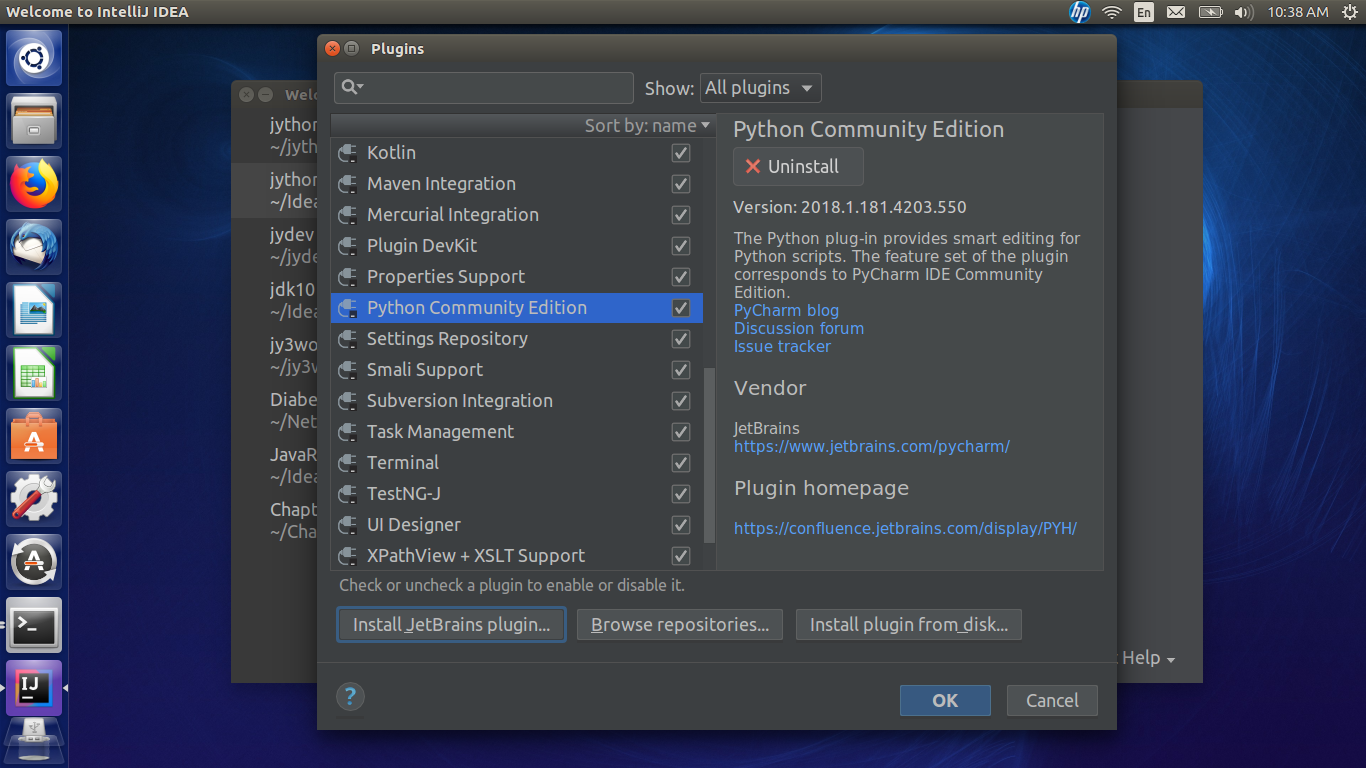
In the search dialog, type a partial name. Then select Pycharm Community Edition. On the right, there will be a green Install button. Click and follow the prompts. You may need to restart the IDE.

When you restart IntelliJ, you are now ready to set up a Jython project. The following screen-shots are for setting up the Jython development project.
Select "Check out project" from the main window, then select Mercurial. (This post will be updated later, when they move the project to GitHub). The link is https://hg.python.org/jython. The default directory will be <root>/IdeaProjects/<projectname>. If you want to store the source files somewhere else, put the path here. Then click "Clone". When it finishes, it will ask you if you want to create a project. Agree.

The project defaults can be accepted except in two places: The first one is shown below. At this screen, there are two options on setting up the projec: file based, or directory based. Choosing directory based makes it easier to compile and build your project. more explanation will follow later on, when i discuss the building your project.

The second is the modules screen. You only need one, your main folder. In the screenshot below, my folder is jydev, and that's the only module I need. unselect all the other ones. It doesn't remove the directories. Again this makes compiling your proect a lot easier.

Once you've finished setting up your project, it will open and be ready. Now, whe will go through the project structure and tweak the settings.
From the File menu, select "Project Structure".
Under the Project menu item, select the Java JDK you will work with. While you can use any JDK, for Jython, it is strongly suggested to use JDK8 or below, pending integration with JDK9. For me, I picked JDK1.8. If there are no JDKs set up yet, then click "New", then find the JDK directory. Then click OK to return to the Project setting.

Next is the "Modules" setting. When it set up your project, IntelliJ automatically found your Python sources (as shown by the arrows). Click Python, then select your Jython interpreter. If there is no Jython interpreter set up, click the ellipses to the right of the drop-down. The SDK window will appear. Click the "plus" to add an SDK and find your Jython installation path. it will add it as a SDK. Once that's done, click OK to return to the Modules menu. For all Python code, select Jython as the interpreter.
NOTE: If you are working on Jython itself, you can choose the development Jython as your interpreter. Just add it at the SDK screen, change the name label. Use the release Jython for your other projects.


Under SDK, you can leave it set to the JDK you selected in the project menu.


The above steps are for setting up general Jython projects you want to develop The following screen-shots are specifically for Jython development itself.
note: If you would like to use the "Build project" from the menu, there are some steps to ensure a successful build. You will need to run Ant at least once, to generate the build folder. Follow the Ant setup section.
You may use IntelliJ's "Build project" option (from the Build menu. Or you can use Jython's own build.xml file and Ant to build your project. I have my IDE set to show the Toolbar, and also Tool Buttons (from the View menu). Tool Buttons will give you the buttons on the left, right and bottom of the window. on the right side, are the ant and Maven buttons. Click "Ant Build" to bring up the dialog. As you see, it doesn't show anything.
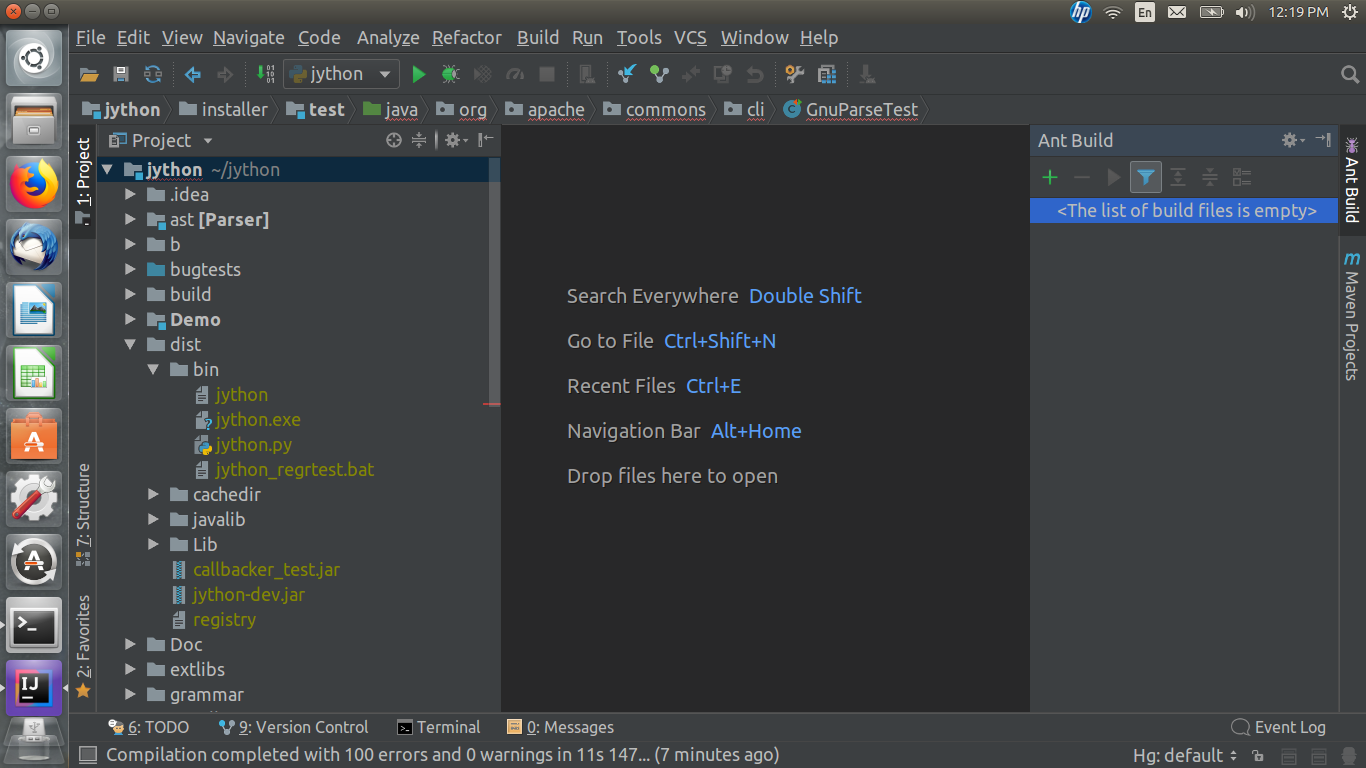

Now, it will show a list of Ant build options. if you click filter (the green icon to the right of "Run"), it will only show the Ant build selections contained in the build.xml file. We will use "developer-build". Right-click "deverloper-build" and select Properties.


Now that you've built Jython, you can now run it from within the IDE. You must choose the Python interpreter, as it runs under Python. In your /dist/bin folder (in the projecxt file tree), find the jython.py file. The first time, it will ask you to configure it.
Windows users: You should run the jython.exe file, instead of the jython.py file
This window will open. you can put any parameters you like (such as any JVM options, or switches). For a list of options, at the terminal, run Jython with the -h for help. In the environment section, select "Use specified interpreter" and select Python 2.7. Then check the box for "Emulate terminal in output console" (so that you will see the interactive prompts, >>> and ...). When you're finished, click OK. then select "Run" from the "Run" menu item.

There, you're all done. Note: Any Python files containing inline Java code, you should select Jython 2.7 as the interpreter (if it hasn't already). Only the jython.py file needs to run under Python.
The debugger will use the same interpreter as the Run configuration, so for jython.py it will use Python. All others will use the Jython debugger or the Java debugger (if it is a .java source file).
Building the Project
If you ran Ant and it returned an error, don't despair. The next section will help in setting up the source code and libraries to build and then you can run Ant again successfully.
You need to make sure that *all* of your sourcesfolders are chosen. IntelliJ is sort of strange in this regard. open your Porject Structure, go to your Modules. you will see all the subfolders under your jython folder. After you ran Ant, it created a /build folder. Navigate to the "gensrc" folder, expand and select all folders . Once they are highlighted, click Source. The folders will turn blue. Do the same for the src and all sub-folders.


Next, you need some external libraries. I had to add an Ant library, an informix library and an ojdb library. Click _ then select "Java", navigate to the folder containing the .jar file. Select the .jar file, then click OK. Click OK again to attach it to your jython module.
Once you coomplete these stepts, click OK and then run "Build porject" from the Build menu.

I hope this tutorial is clear and easy to follow. If you continue to have trouble and need more help, please contact me at psykiatris@gmail.com and I will be very glad to help you.
Happy coding!
Subscribe to:
Posts (Atom)